
Instructions for TEAS at ATI Exams
This guide walks you through installing the Respondus LockDown Browser on your computer or iPad and starting your ATI TEAS exam.
- Check your system requirements
- Log into your ATI account
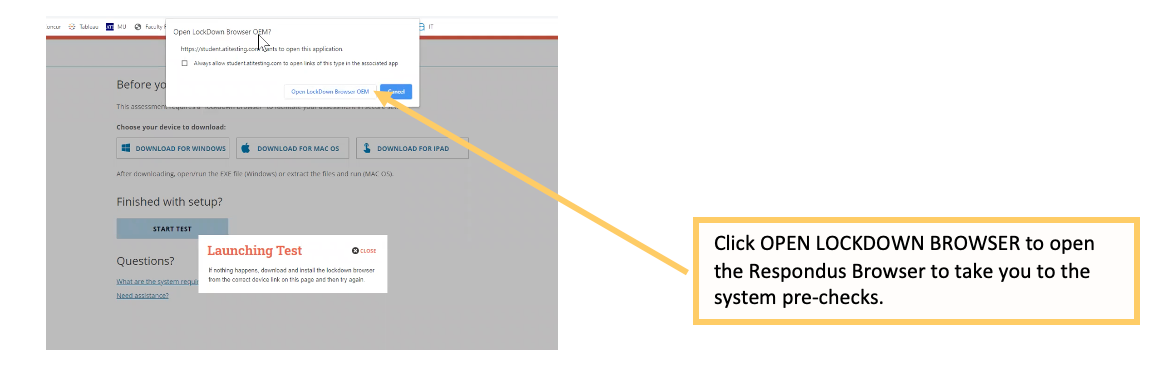
- Install the Respondus LockDown Browser
- Run the Respondus system pre-checks
- Take your TEAS exam
Before you begin – read this first
- Start on time. Your exam must begin at your scheduled start time. We recommend logging in 30 minutes early so you have time to sort out any computer or login issues. There is a 30-minute grace period after your scheduled start time; if you have not started the exam by then, you will not be able to test, and the exam will not be refunded or rescheduled. For example: if your exam is at 2:00 p.m., log in around 1:30 p.m. — and if you have not started by 2:30 p.m., you will not be able to test.
- Test your setup ahead of time. Technical issues with your computer or internet are not a valid reason for a refund or a free reschedule. Make sure all technical requirements are met and use the Dry-Run assessment to test your system.
- Bring your ID. You need a physical, current, government-issued ID (e.g., U.S. passport, driver’s license, state ID card, foreign passport). The first and last name on your ID must match the name on your ATI account. The #1 reason exams are stopped or flagged is a missing ID photo during pre-checks or a name mismatch. Need to fix your name? Request a name change before test day.
Step 1: Check your system requirements
You may use any laptop, desktop, or iPad with a supported operating system. See the current list on our technical requirements page.
IMPORTANT: Google Chromebooks are not supported by ATI for remote testing at this time.
Set yourself up for success before your dry run or proctored ATI TEAS exam
- Use a fully charged device, or keep it plugged in.
- Confirm your camera works: webcamtests.com
- Confirm your microphone works: onlinemictest.com
- Confirm you have a strong internet connection: speedtest.net
- Find a well-lit space and be ready for a desk scan. See room setup suggestions and other test day requirements.
- You may use one blank 8½ x 11 sheet of paper (or a desktop dry-erase whiteboard) during the exam. Destroy the paper when you finish.
- Headphones are NOT allowed unless you have an approved accommodation submitted to the Proctor department.
Step 2: Log into your ATI account
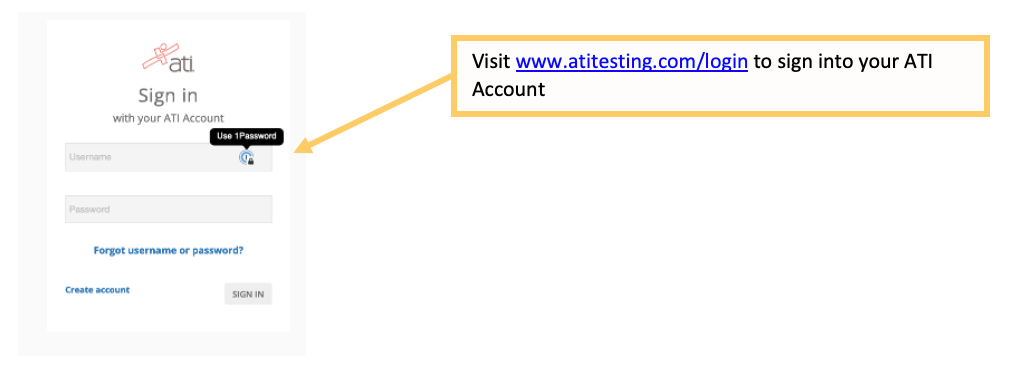
Go to www.atitesting.com/login in Google Chrome, Mozilla Firefox, or Safari and enter your username and password.
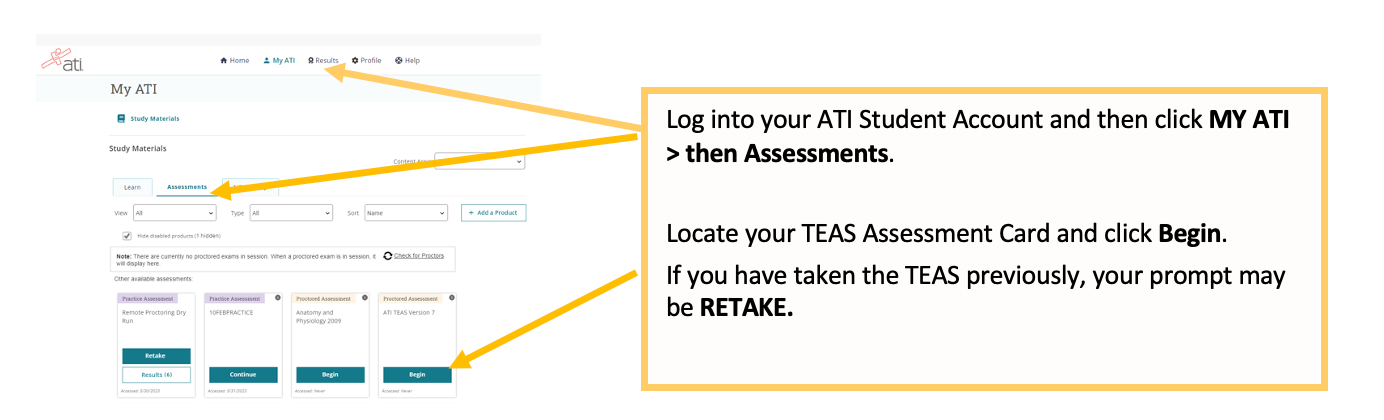
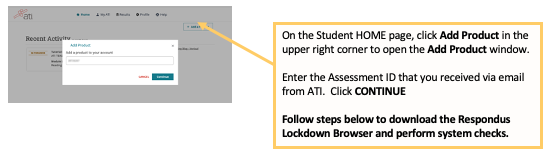
Don’t see your ATI TEAS Proctored Assessment card on the Assessments tab? Enter the Assessment ID manually.
ATI emailed your Assessment/Product ID after you registered for TEAS at ATI and again 24 hours before your exam.
Note: If you did not receive an Assessment/Product ID, contact ATI at 1-844-956-2790 (this number is active only on test day) or email [email protected].
Already completed your ATI TEAS Dry Run and installed Respondus? Skip to Step 4 – Run the Respondus system pre-checks. Otherwise, continue to Step 3.
Step 3: Install the Respondus LockDown Browser
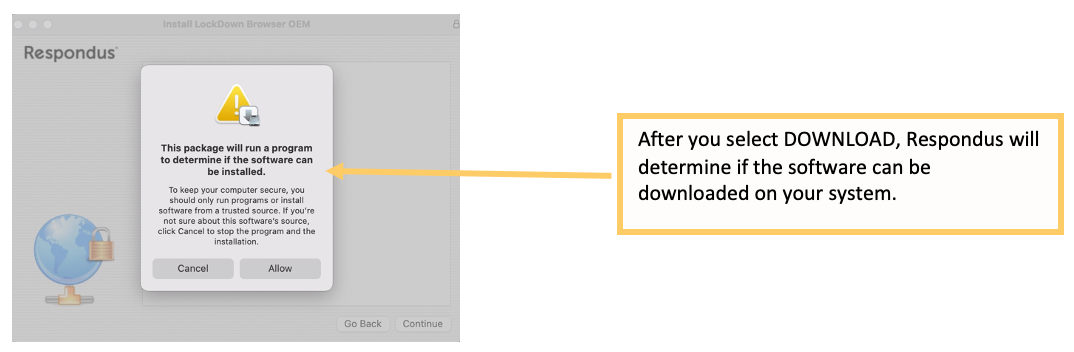
Important: Administrator rights are needed to install Respondus. If you’re using someone else’s device, have them approve the install and enter their credentials.
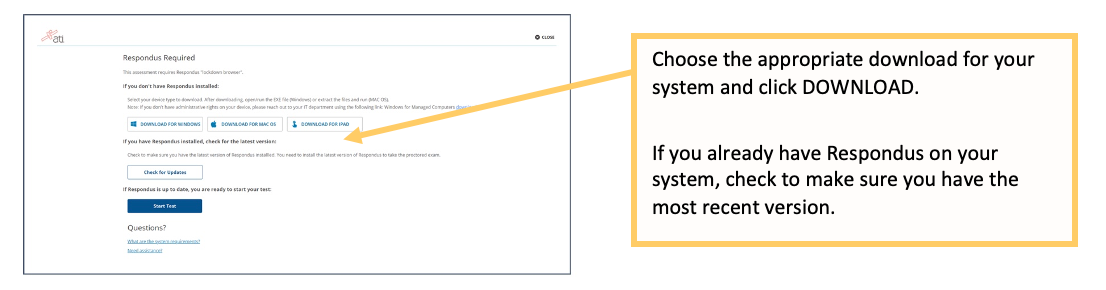
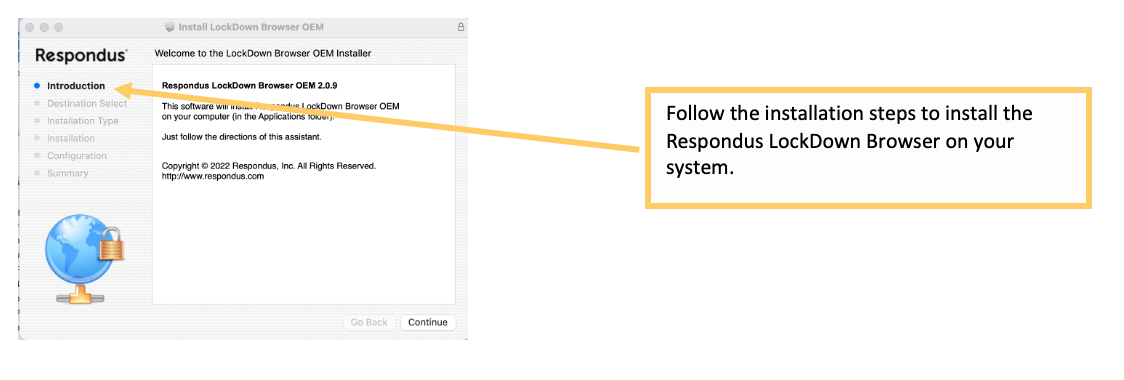
Mac/Windows users
If your testing window does not fill the screen, check the display settings on your computer. For high-resolution monitors, try 3840 x 2160 resolution with 200% scaling.
iPad users
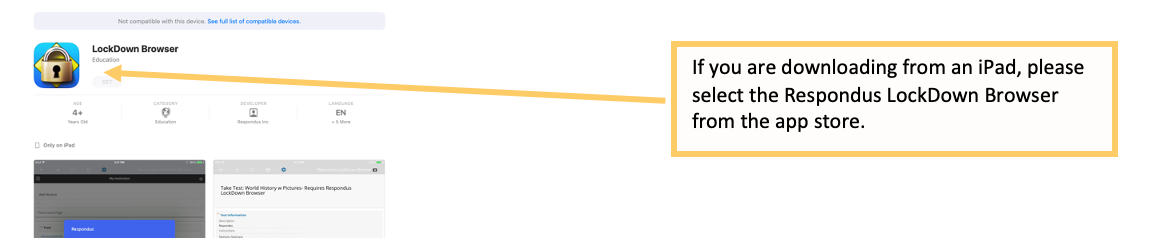
Download and install the Respondus LockDown Browser from the App Store.
You will need to lock the iPad’s orientation before beginning the exam. Prop the iPad vertically so it faces you — we recommend a case or stand and an external keyboard if you own one. Do not lay the iPad on a flat surface.
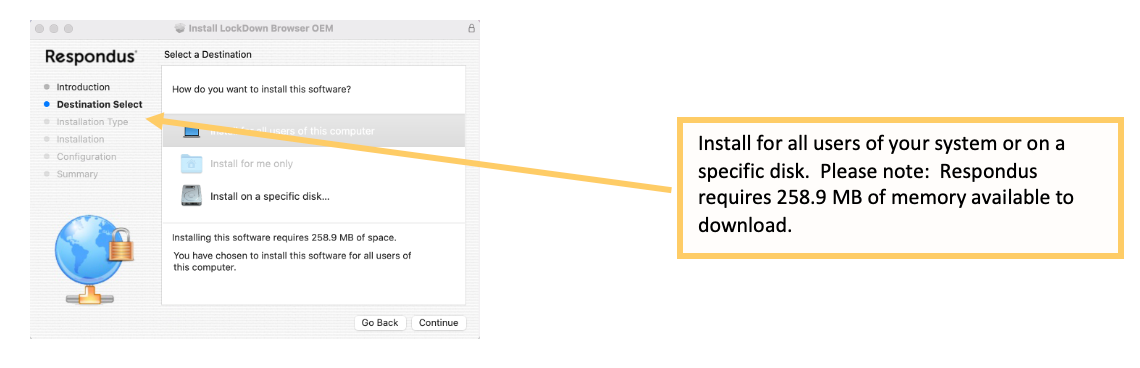
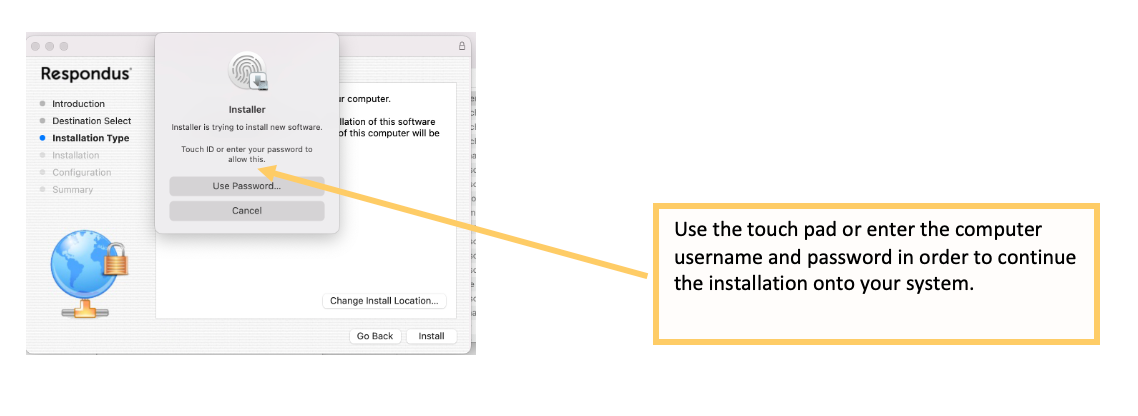
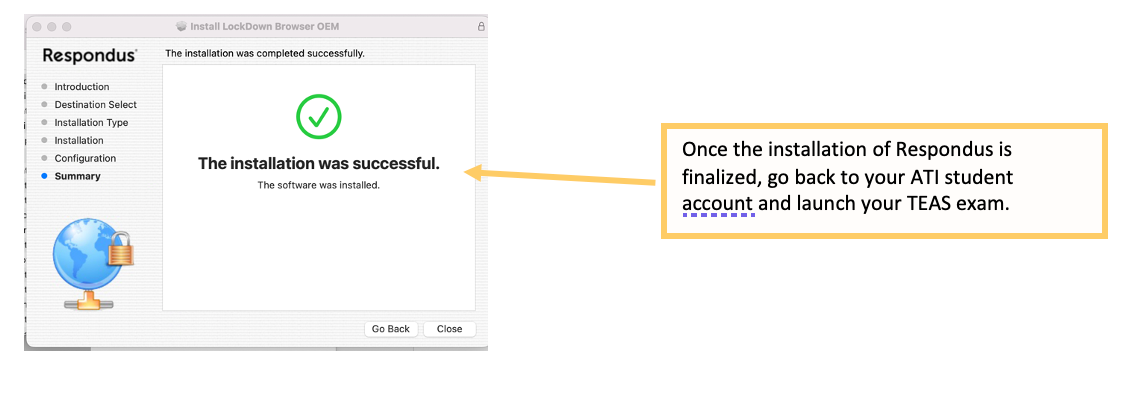
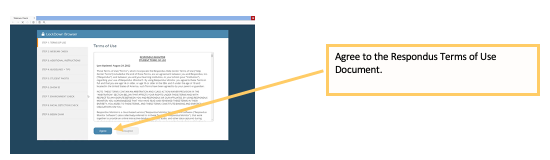
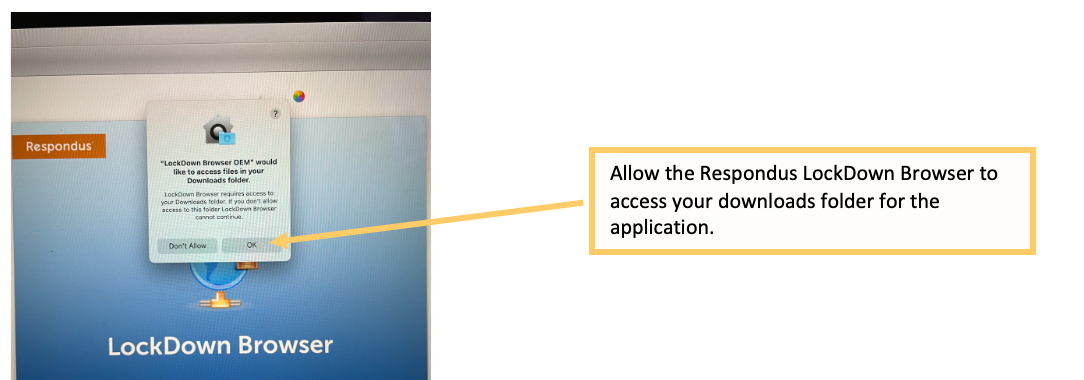
Step 4: Run the Respondus system pre-checks
Before you start, close every application except the browser you used to log into ATI, and make sure your device is fully charged or plugged in. See this article for tips on setting up a room for a remote at-home exam.
Work through each check in order:
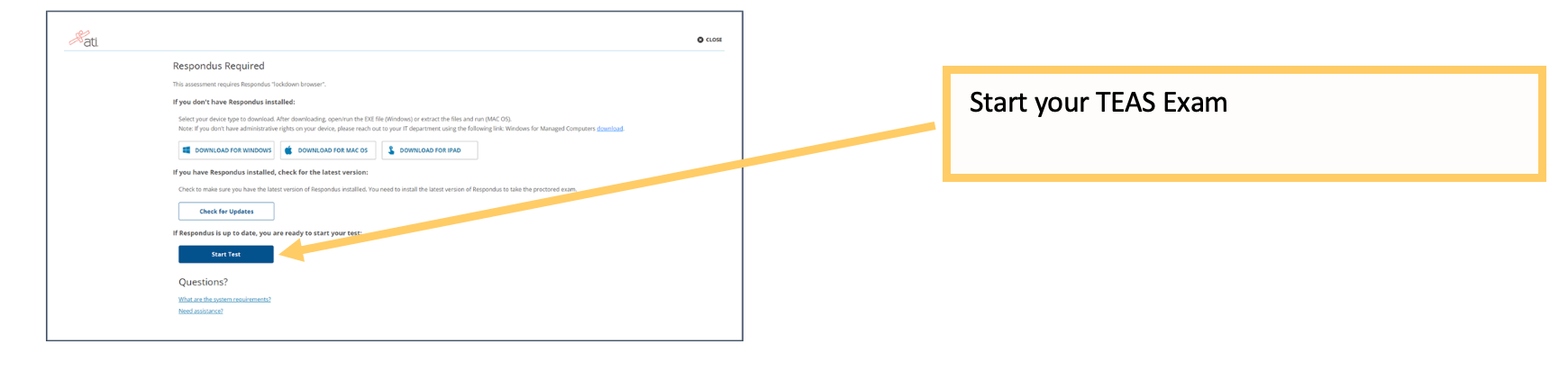
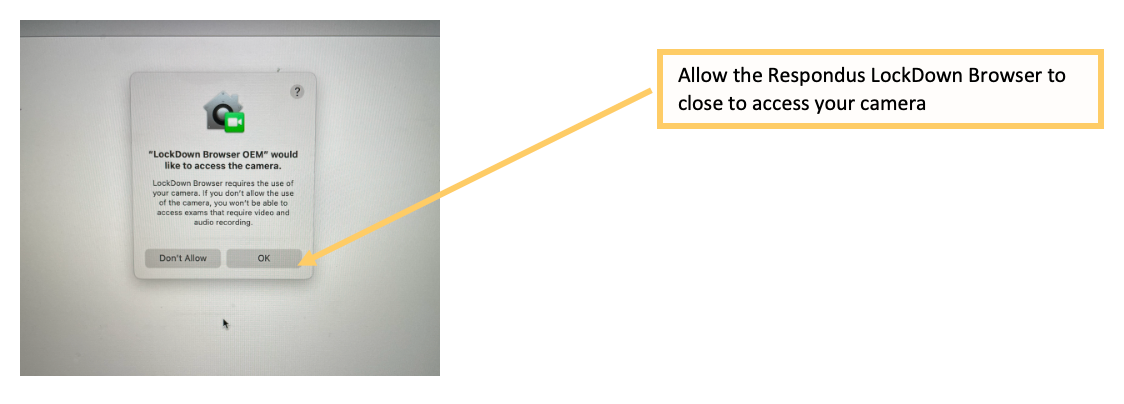
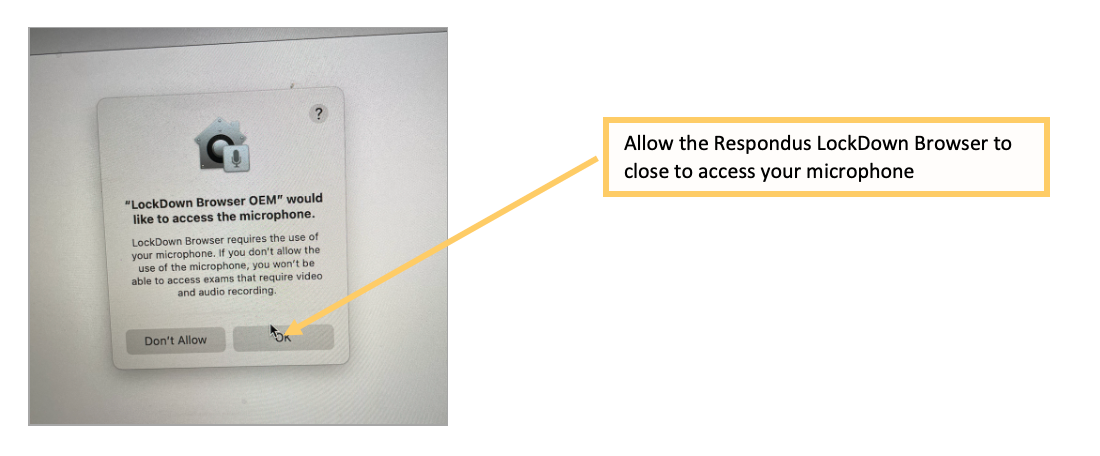
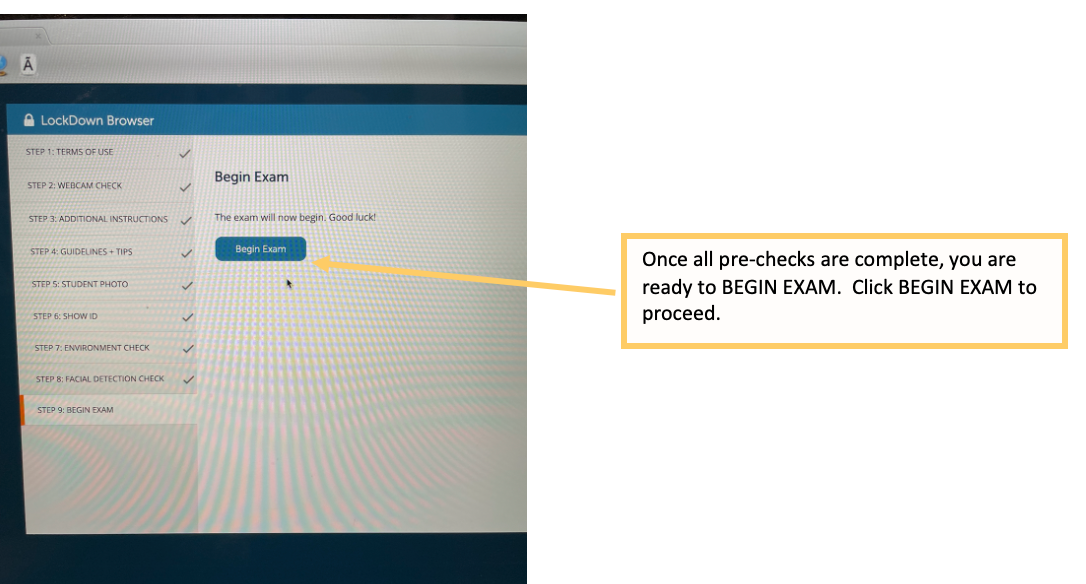
Webcam check
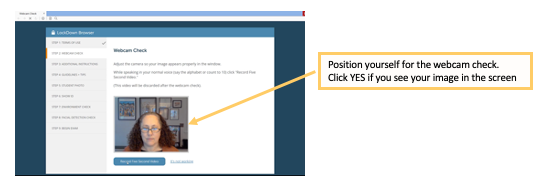
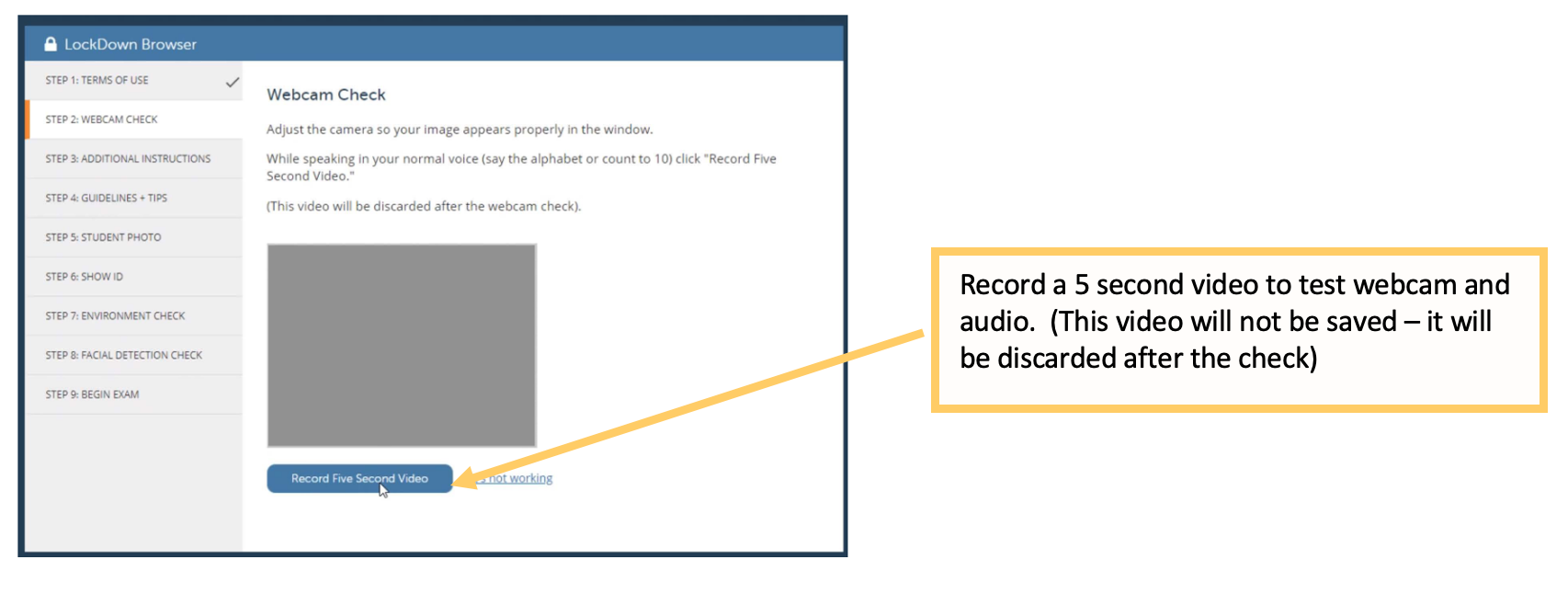
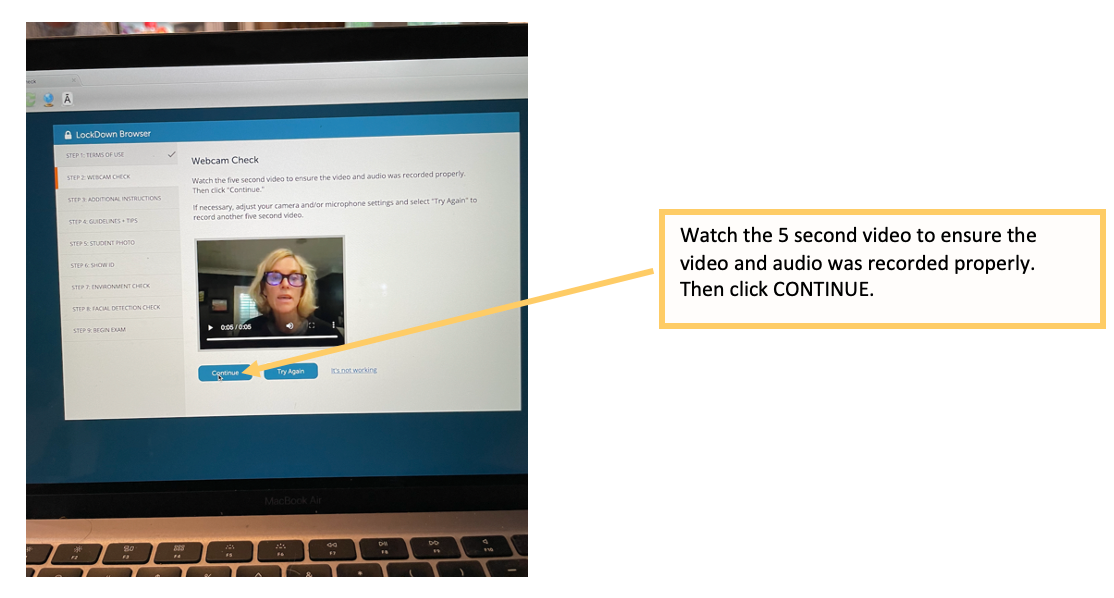
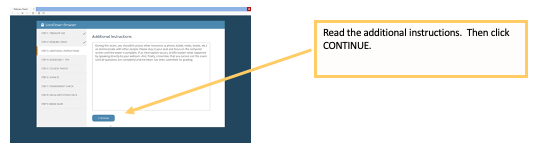
Additional instructions
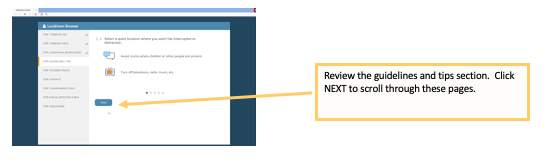
Guidelines and tips
Student photo
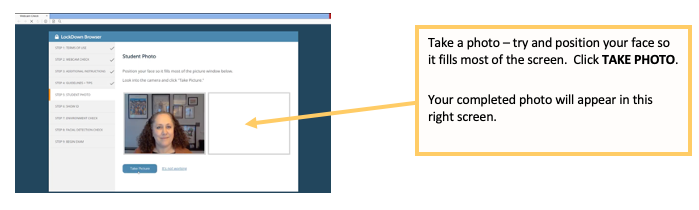
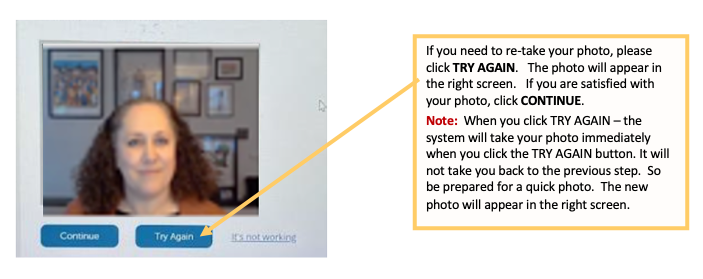
Photo of ID
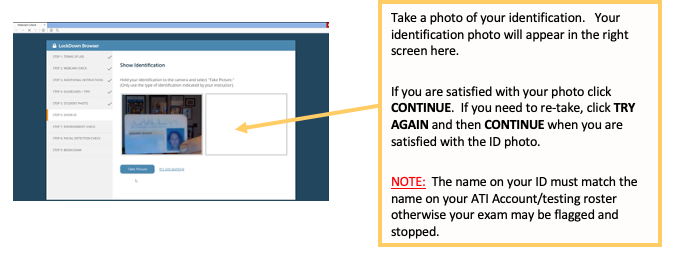
The #1 reason students have their exam stopped or flagged during a remote exam is that they didn’t take a picture of their ID during this pre-check, or the name on their ID does not match the name on their ATI account. To request a name change on your ATI account, see this article.
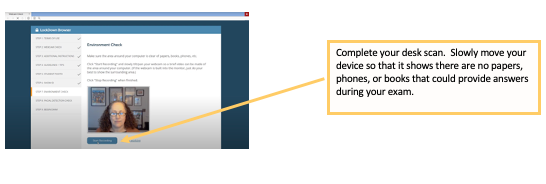
Environment check
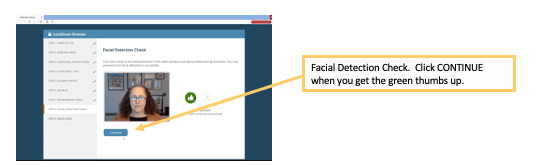
Facial detection check
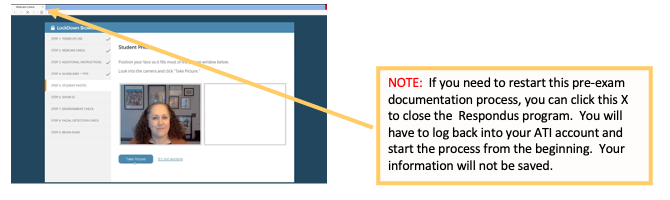
Tip: If a photo of you or your ID doesn’t come out right, close the Respondus program and start the pre-checks again. You can do this any time before the exam begins.
Begin exam
Step 5: Take your TEAS exam
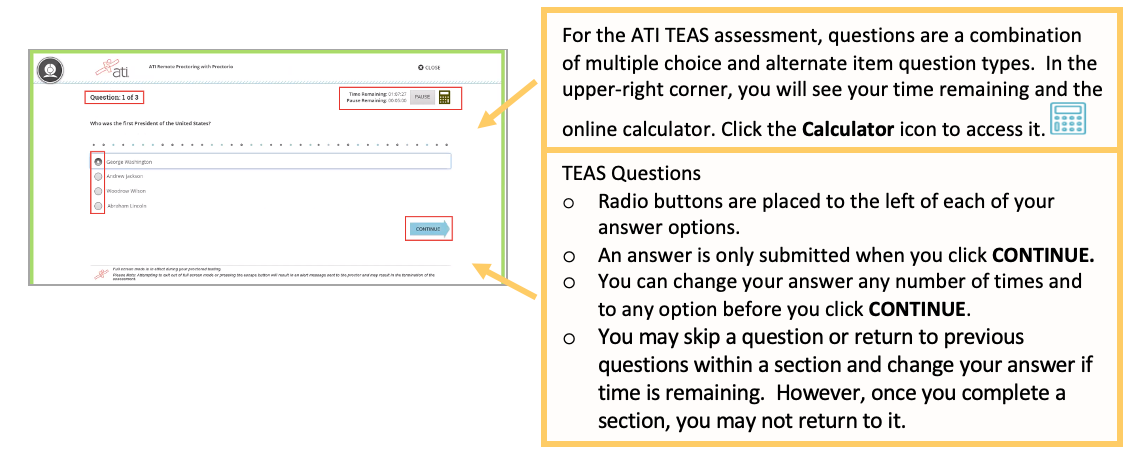
- Once the exam begins, a “Recording” icon will appear at the top right of the screen.
- Do not exit the exam until you’re finished. You won’t be able to print, copy, open other applications, or visit other websites during the exam.
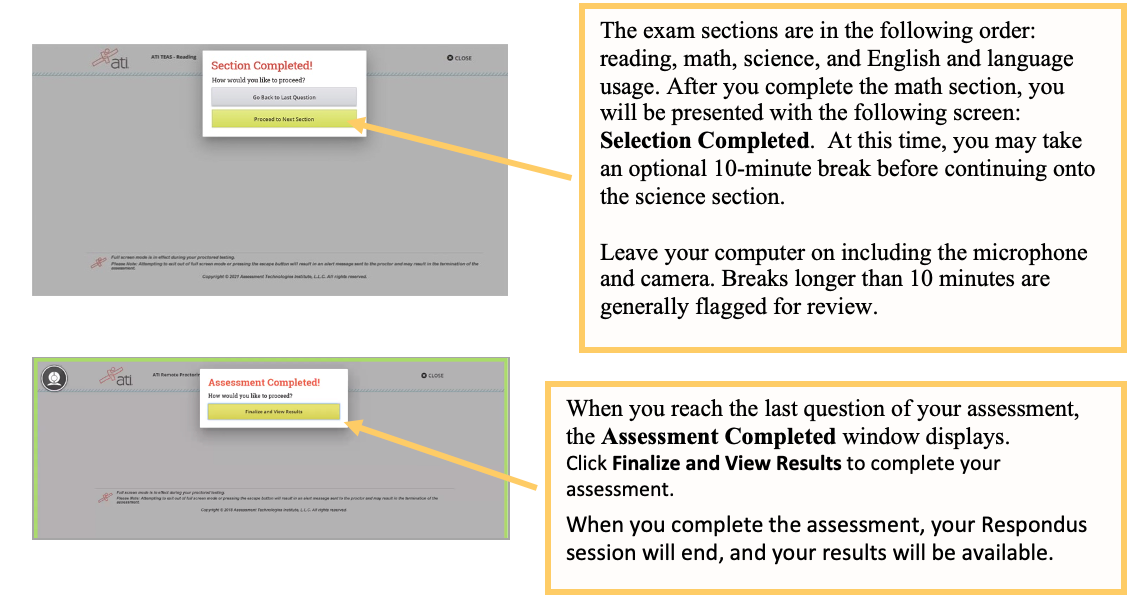
- When you submit the exam for grading, the webcam stops recording and you may exit LockDown Browser.

Frequently asked questions
What time should I sign in for my TEAS at ATI exam?
Your exam begins at your scheduled start time. We recommend logging in 30 minutes early so you have time to launch Respondus, complete the pre-checks, and sort out any computer issues. There is a 30-minute grace period after your scheduled start time; if you have not started the exam by then, you will not be able to test, and the exam will not be refunded or rescheduled. For example: if your exam is at 2:00 p.m., log in around 1:30 p.m. — and if you have not started by 2:30 p.m., you will not be able to test.
How do I access the exam on test day?
Log into www.atitesting.com/login in Chrome, Firefox, or Safari, click MY ATI, then the Assessments tab, and click Begin on your ATI TEAS proctored assessment card. If the card isn’t there, click Add a Product and enter the Assessment ID from your ATI email.
I didn’t get an Assessment ID. What do I do?
ATI emails your Assessment/Product ID after you register and again 24 hours before your exam. If you don’t have it, contact ATI at 1-844-956-2790 (active on test day only) or email [email protected].
Do I need to install anything before the exam?
Yes. You need the Respondus LockDown Browser, installed on the same device you’ll test on. Administrator rights are required. If you’ve already completed a Dry Run on that device, Respondus is installed and you can skip to the pre-checks.
Can I use a Chromebook?
No. Google Chromebooks are not supported for remote testing at this time. Use a Windows or Mac laptop or desktop, or an iPad.
What ID do I need?
A physical, current, government-issued photo ID (U.S. passport, driver’s license, state ID, or foreign passport). The first and last name on your ID must match the name on your ATI account. A missing ID photo during the pre-checks, or a name mismatch, is the most common reason an exam is stopped or flagged.
Can I use a calculator?
Yes, but only the one built into the exam. A drop-down calculator is available on screen during the TEAS. Personal calculators are not allowed.
Can I use scratch paper?
You may use one blank 8½ x 11 sheet of paper or a desktop dry-erase whiteboard. Destroy the paper when you finish.
Can I wear headphones?
No, unless you have an approved accommodation on file with the Proctor department.
What happens if my computer or internet fails during the exam?
Technical problems with your own equipment or connection are not considered a valid reason for a refund or free reschedule. Test your setup ahead of time with the Dry Run assessment and make sure your device is charged or plugged in.
How do I reschedule?
See How to reschedule your ATI TEAS exam.
TEAS at ATI exam support
- Reschedule your exam: How to reschedule your ATI TEAS exam
- General customer service before your exam: Contact ATI Support at 1-800-667-7531.
- Assessment ID or any test day issue: Contact [email protected] or 1-844-956-2790. (This number is only available during exam hours and only for TEAS at ATI exams.)
