
Respondus LockDown Browser is the secure browser you use for a TEAS at ATI exam and the Dry Run that comes before it. When it won’t install, won’t load, can’t find your camera, or closes in the middle of the exam, the fix is usually one of the steps below. Find your symptom and start there.
Do the Dry Run before exam day. Technical problems with your own computer, internet, or software are not a valid reason for a refund or free reschedule. The Dry Run uses the same LockDown Browser and the same checks as the real exam, on the same device — it’s how you find these problems while there’s still time to fix them.
Before you troubleshoot: three things to confirm
- Supported device. TEAS at ATI works on a Windows PC, a Mac, or an iPad. Chromebooks are not supported and there is no workaround. See the system requirements.
- Administrator rights. Installing LockDown Browser requires an administrator account on the computer. On a school- or employer-managed computer you may not have them — use a personal device instead.
- Install from your ATI account, not from a search engine. ATI uses a specific build of LockDown Browser (you’ll see it named LockDown Browser OEM). Launching the Dry Run or exam card in your ATI account opens the Respondus Required screen with the right download for your device; a copy from another school or from a web search will not open your exam.
LockDown Browser won’t download or install
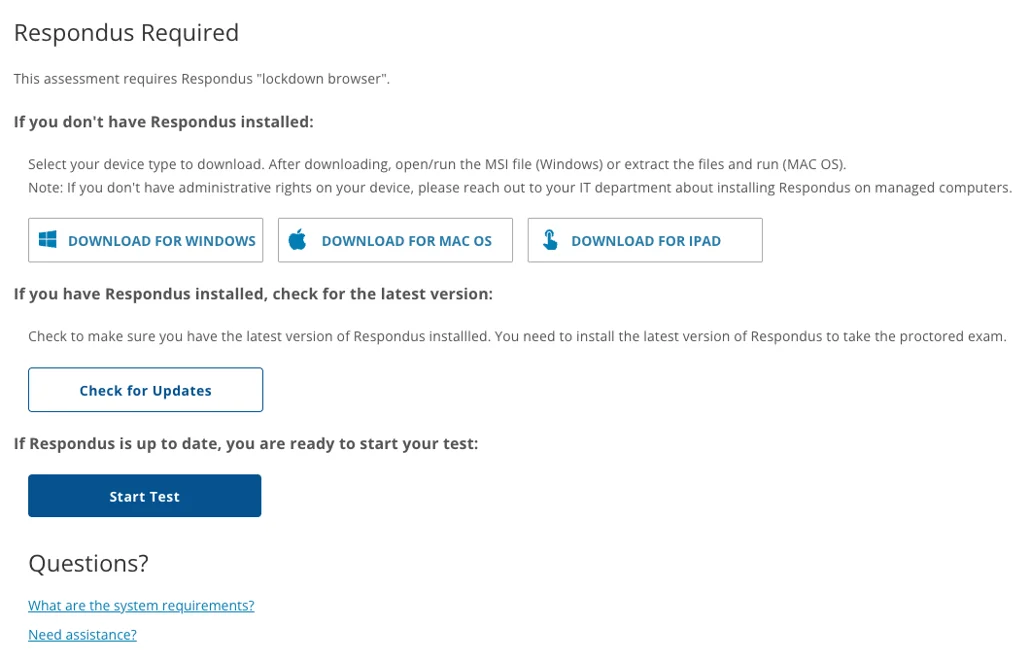
- Sign in at www.atitesting.com/login, click MY ATI, and open the ATI TEAS® Dry Run card (or your exam card on test day). The Respondus Required screen opens.
- Click Download for Windows, Download for Mac OS, or Download for iPad. On Windows, open and run the MSI file; on a Mac, extract the download and run it. If your browser asks, click Open LockDown Browser OEM.
- Already have it installed? You must be on the latest version to take a proctored exam — but Check for Updates often does not work, so if you are prompted to update, do a clean reinstall (see Reinstall LockDown Browser) instead. Then click Start Test.
- If nothing downloads, check that your browser isn’t blocking pop-ups or downloads for atitesting.com, and that you’re not on a VPN. See How do I see if I am using a VPN?
- If the installer runs but fails, temporarily turn off third-party antivirus or security software, then try again. A firewall can also block the connection — see Could a firewall be blocking ATI or LockDown Browser?
- On a Mac, macOS will ask you to allow LockDown Browser to access your Downloads folder, camera, and microphone, and to close other open applications. Allow each one — declining any of them will stop the exam from starting.
Respondus Required screen – download, Check for Updates, and Start Test
Exam won’t load, stays on a blank or “loading” screen, or freezes
- Quit LockDown Browser completely (don’t just close the window), wait a few seconds, and relaunch it from the card in your ATI account.
- Restart your computer, then try again. This clears most frozen or locked screens.
- Open the Dry Run or exam card again and click Check for Updates on the Respondus Required screen — an out-of-date LockDown Browser is a common cause of exams that won’t load.
- Check your internet connection at speedtest.net — you need at least 5 Mbps, ideally 10 or more. If you’re on Wi-Fi, move closer to the router or connect with a cable. Turn off any VPN.
- Close every other application, especially anything that uses the camera or screen (Zoom, Teams, FaceTime, Discord, streaming or screen-recording software).
- If it still won’t load, reinstall LockDown Browser (next section).
“Unexpected Error” when starting the exam on a Mac
If LockDown Browser shows “Unexpected Error” the moment you try to start your Dry Run or exam on a Mac, the usual cause is a nearby iPhone. macOS can hand your iPhone’s camera to the Mac (a feature called Continuity Camera), and LockDown Browser cannot start while that handoff is in play. Try these in order, then relaunch from your exam card:
- Turn your iPhone off completely before you start the exam. You will need to anyway: phones are not allowed in the testing area.
- Remove any emoji from your iPhone’s name. On the iPhone, open Settings › General › About › Name and delete any emoji.
- Turn off Continuity Camera on the iPhone. Open Settings, tap General, tap AirPlay & Handoff (on some versions, AirPlay & Continuity), scroll down, and switch Continuity Camera off.
Reinstall LockDown Browser
A clean reinstall fixes most persistent problems. Remove every copy first — some computers have more than one version installed from different schools or exams.
Windows 10 and 11
- Click Start › Settings › Apps › Installed apps (on Windows 10: Apps & features).
- Search for LockDown or Respondus.
- Click the ⋯ (or the app name) › Uninstall. Repeat until no LockDown Browser or Respondus entries remain.
- Restart your computer.
- Sign in to your ATI account, open the Dry Run or exam card, and click Download for Windows on the Respondus Required screen. Run the MSI file to install. You’ll need administrator rights.
Mac
- Quit LockDown Browser if it’s open.
- Open Finder › Applications, find LockDown Browser (there may be more than one), and drag each one to the Trash.
- Empty the Trash and restart your Mac.
- Sign in to your ATI account, open the Dry Run or exam card, and click Download for Mac OS on the Respondus Required screen. Extract the download and run it. Allow the camera, microphone, and Downloads-folder prompts when they appear.
iPad
- Press and hold the LockDown Browser app icon, tap Remove App, then Delete App.
- Open Safari, sign in to your ATI account, open the Dry Run or exam card, and tap Download for iPad on the Respondus Required screen to reinstall the app.
Webcam or microphone not detected
LockDown Browser uses your computer’s own camera and microphone permissions — there is nothing to change inside Chrome or another browser.
- Windows: Start › Settings › Privacy & security › Camera. Turn on Camera access and Let apps access your camera, and make sure LockDown Browser is allowed. Repeat under Microphone.
- Mac: Apple menu › System Settings › Privacy & Security › Camera. Turn on LockDown Browser. Repeat under Microphone. If LockDown Browser isn’t listed, reinstall it and accept the prompts when they appear.
- iPad: Settings › LockDown Browser › turn on Camera and Microphone.
- Close any other app that could be using the camera, then relaunch LockDown Browser.
- Test the hardware itself at webcamtests.com and onlinemictest.com. If they fail there too, the problem is the device, not LockDown Browser — try an external USB webcam.
The exam closed or disconnected in the middle of the test
- Exit the exam and contact the ATI proctor right away at 1-844-956-2790 (this number is active only during exam hours). The proctor can help you get back into your exam.
- While you wait, relaunch LockDown Browser from the exam card in your ATI account and follow the proctor’s instructions to re-enter.
Still stuck?
- Before exam day (Dry Run or installation problems): email [email protected].
- On exam day: call the ATI proctor line at 1-844-956-2790 (available during exam hours only).
Related: TEAS at ATI – Dry Run Guide · TEAS at ATI – Quickstart Guide