
TEAS Online at Institution is the remote ATI TEAS® exam your school proctors (with Proctorio or Respondus). You register and pay on atitesting.com for a date and time your school has posted, and your transcript goes to that school automatically.
Your school sets the dates. If your school is not in the results, it may not have posted dates yet — some publish only 30 to 60 days ahead — or it registers students another way. Ask the school before you register for a different format. How come my institution is not on the list?
Step 1: Open the registration page and choose Remote
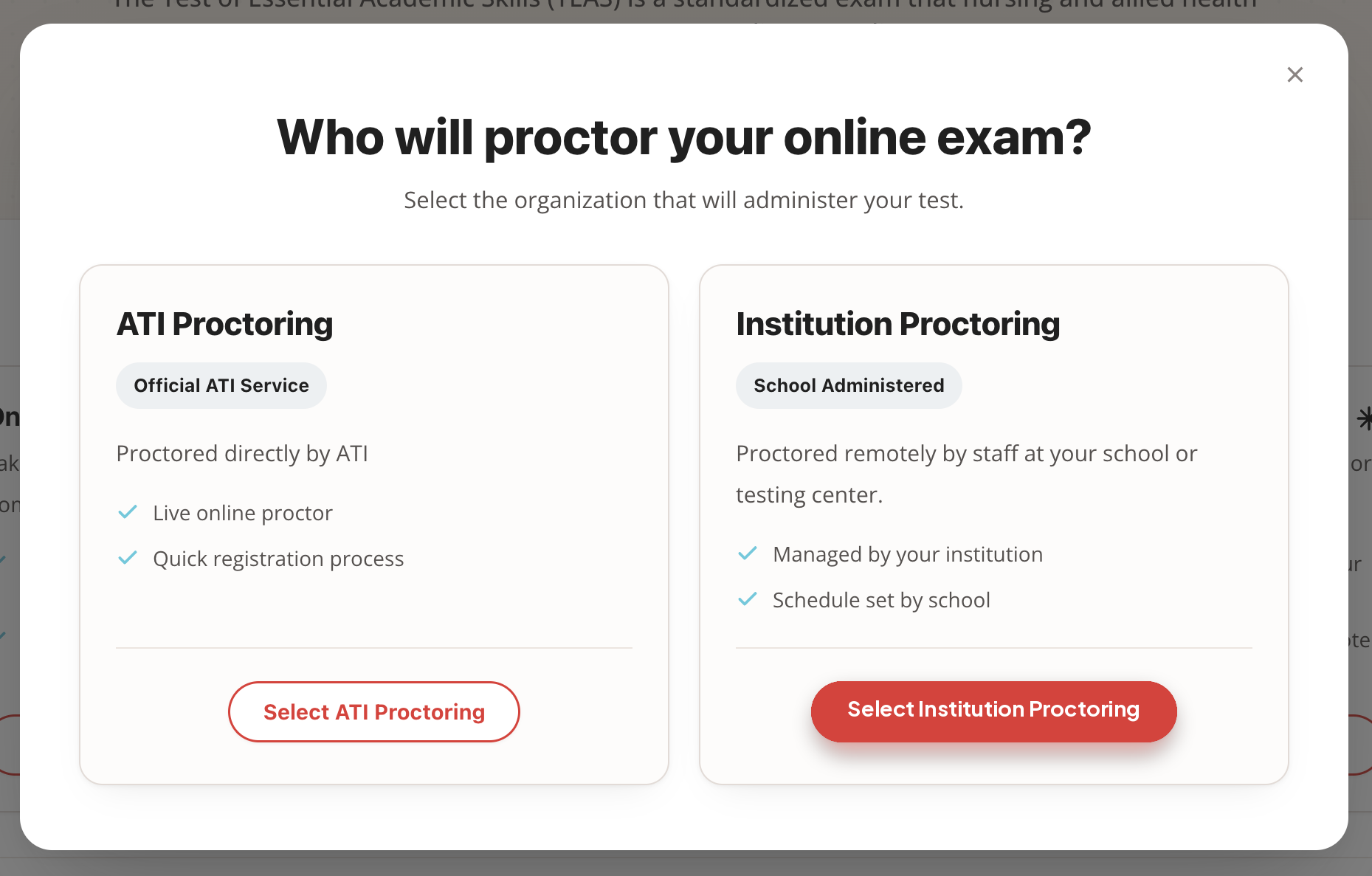
Go to atitesting.com/teas/register, click Register for Remote TEAS, and in the pop-up click Select Institution Proctoring.
Who will proctor your online exam? — choose Select Institution Proctoring
Step 2: Find your school’s date
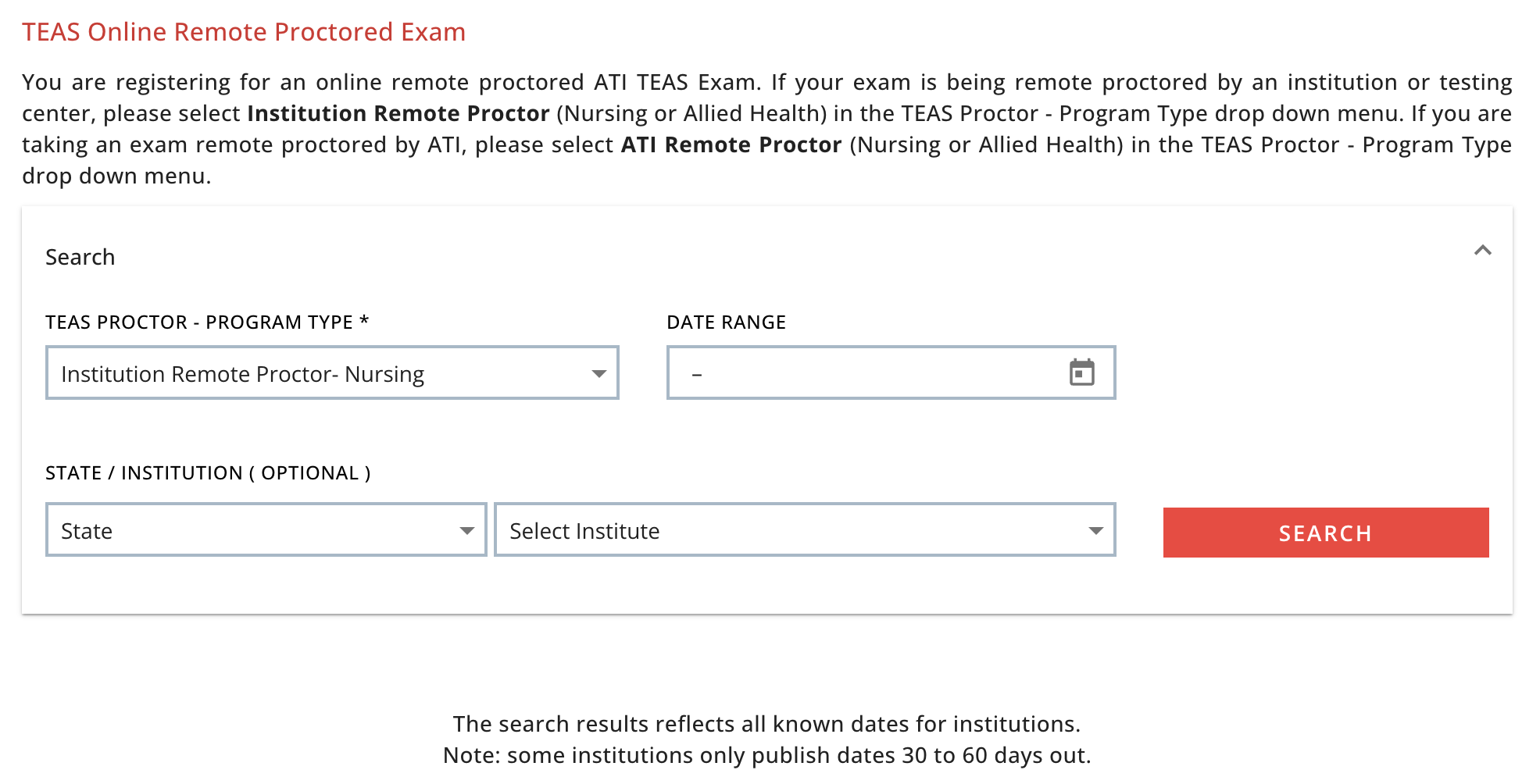
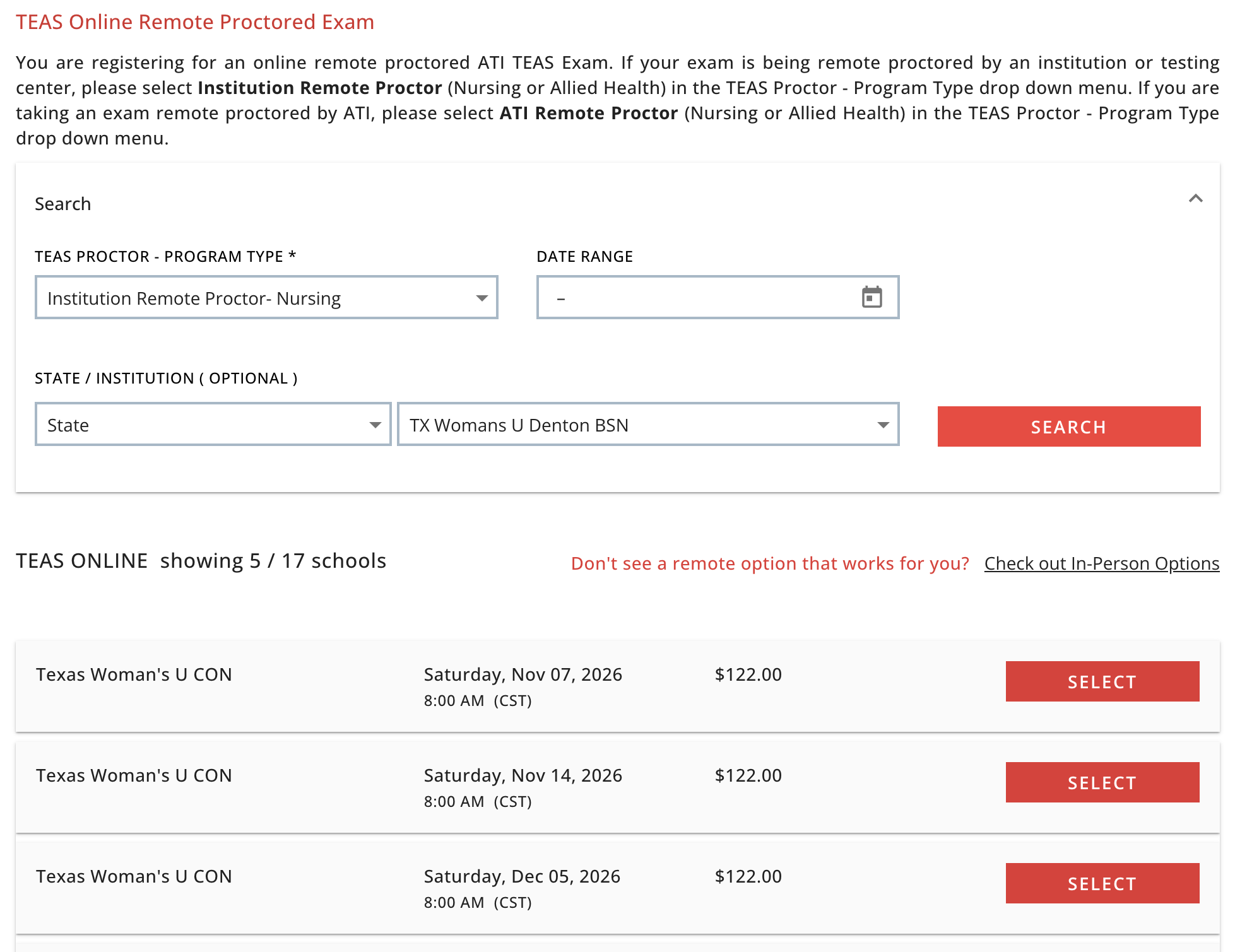
The search opens with TEAS Proctor – Program Type set to Institution Remote Proctor. Choose your State and, if you like, your school under Select Institute, then click SEARCH. Results list each school’s remote sessions with the date, start time, time zone, and fee (schools set their own price). Find your school and click SELECT.
Search — State and Select Institute narrow the list
Results — school, date, start time, fee, SELECT
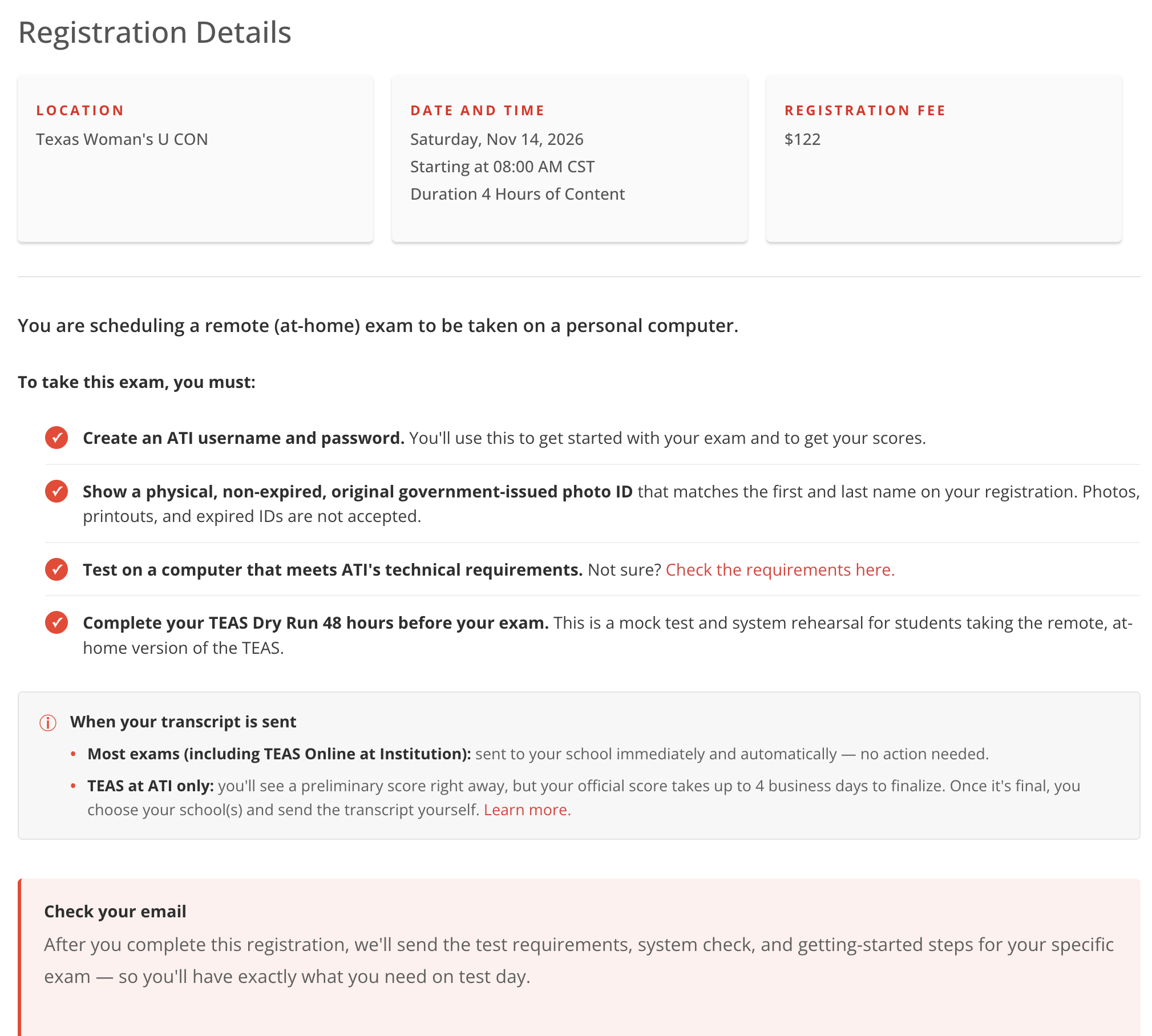
Step 3: Review the Registration Details
Check the school, date, and time. The page lists what you need: an ATI account, a physical photo ID whose name matches your registration, a computer that meets the technical requirements, and the Dry Run. Your start time is set by your school and there is a 30-minute grace period; after that you cannot test.
Registration Details — school, date, time, fee, requirements
Step 4: Sign in and check out
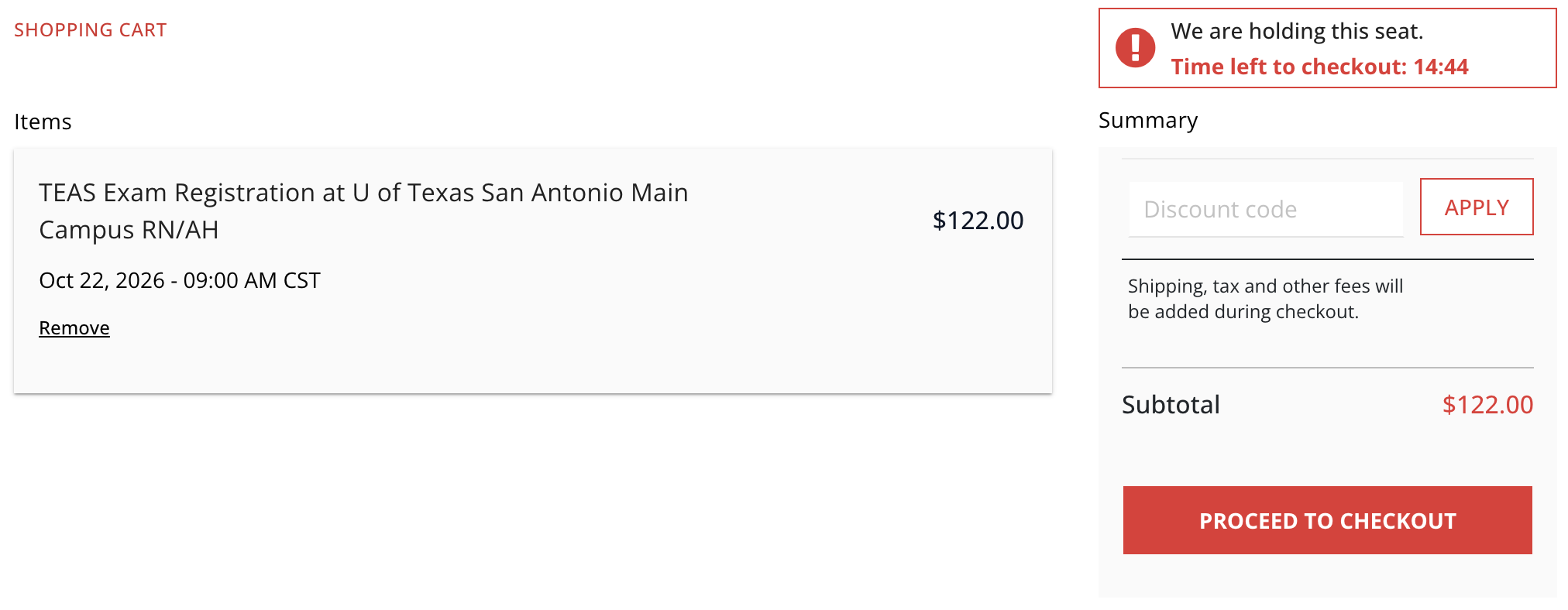
Click CONTINUE REGISTRATION. Your seat is held for 15 minutes while you check out; if the timer runs out, start the search again. Checkout has three steps:
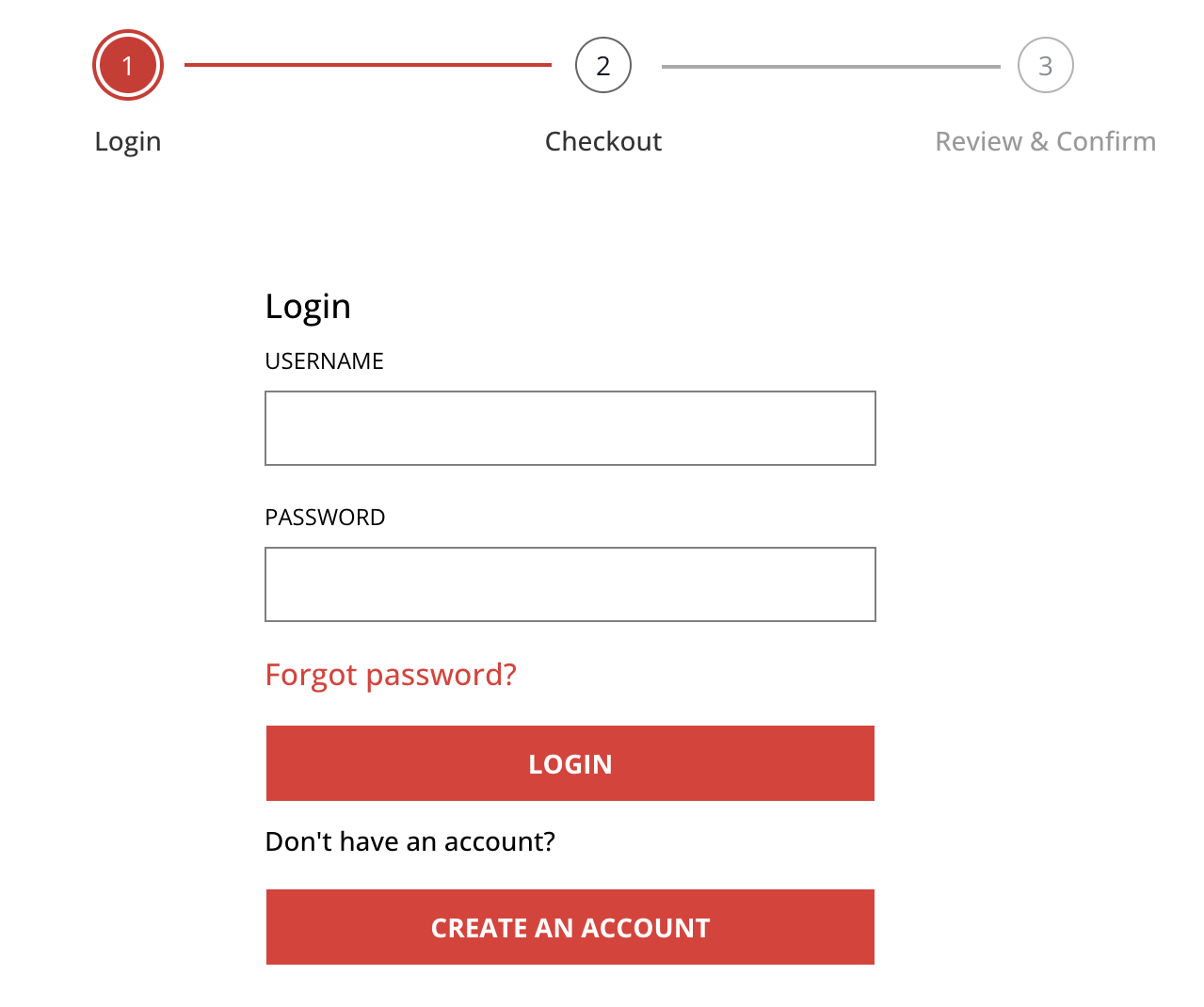
- Login — sign in with your ATI username and password, or click Create an Account. Use your legal first and last name exactly as they appear on your photo ID; your proctor checks them on exam day. How to create an ATI account
- Checkout — enter your billing and payment details.
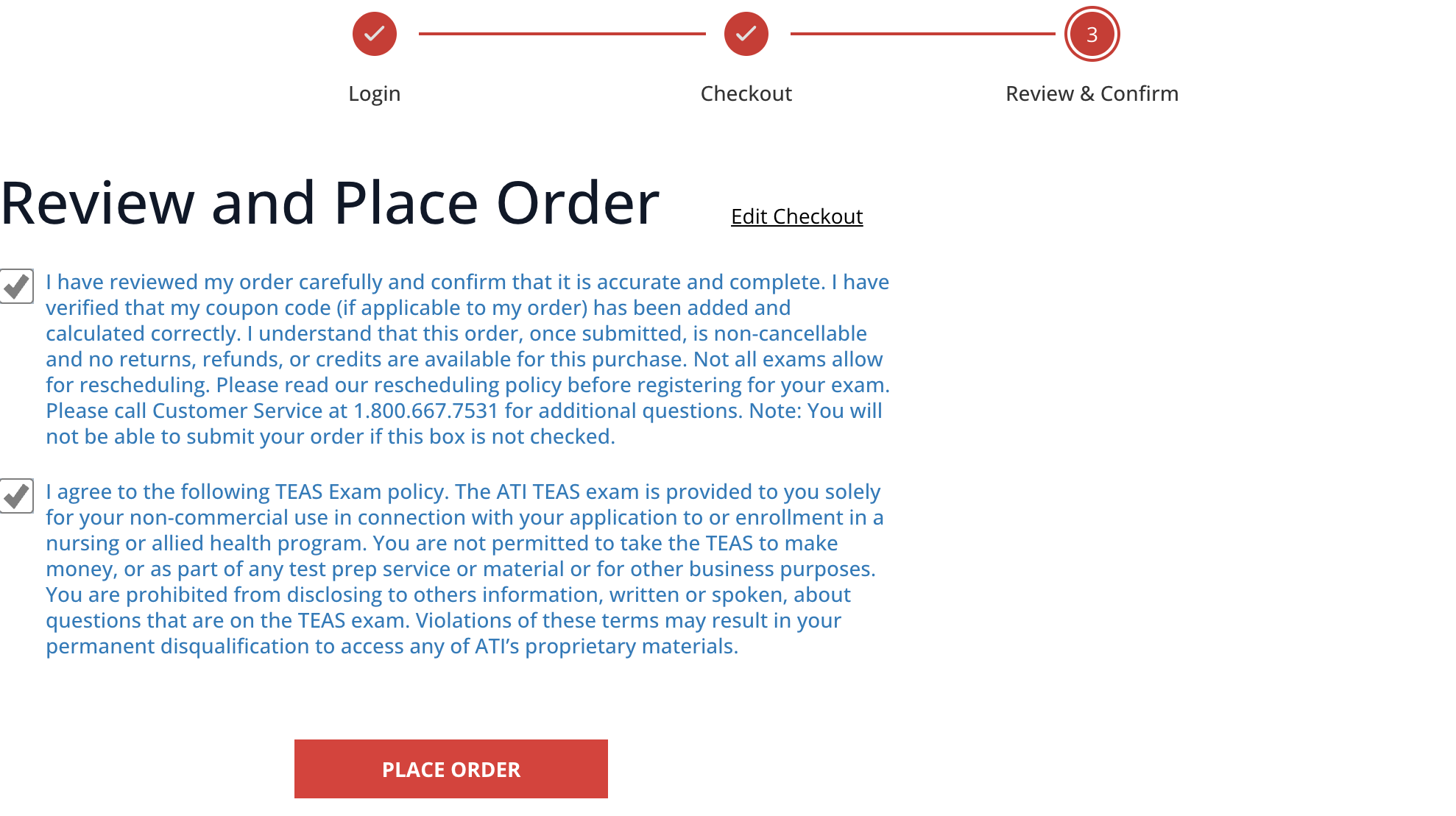
- Review & Confirm — check the exam, date, and time one more time, select both agreement boxes, and click PLACE ORDER.
Login step — sign in or Create an Account
Shopping cart — your seat is held for 15 minutes
Review & Confirm — select both boxes, then PLACE ORDER
The confirmation page and your receipt email (from [email protected]) list your exam, date, and time. Keep the email — it also has your getting-started steps.
Step 5: Do the Dry Run your school uses
Your school will tell you which proctoring software it uses, Proctorio or Respondus, and the matching Dry Run card appears in your ATI account. Finish it before exam day on the same computer you will use for the exam. Proctorio Dry Run · Respondus Dry Run
TEAS Online at Institution Quickstart Guide (Proctorio) · Respondus Quickstart Guide
After you register
- Reschedule: from your ATI account at least 48 hours ahead, $15, within 30 days, same school. How to reschedule
- Transcript: sent to your school automatically — nothing to do. To send it elsewhere too, purchase a transcript credit.
- Assessment ID: your school emails it on its own schedule; if you do not have it the morning of your exam, contact the school.
All ways to register for the TEAS