

How to send your TEAS transcript while your score is still “Preliminary”
Short answer: you don’t have to wait. After a TEAS at ATI exam, your score shows as Preliminary for about four business days. You can send your transcript right away — it is placed in a queue and released to your school automatically as soon as your score is finalized, so your school receives your official score without you having to come back and send it again.
What happens when you send during Preliminary status
- Your transcript is queued, not sent immediately. It is released to your school when your score is finalized — four business days after your exam date, not counting weekends and major holidays.
- Your school receives your final, official score — never the preliminary one.
- Once released, transcripts are delivered electronically within two hours, and ATI emails you a confirmation when it goes out.
- A transcript credit is used when you click Send. Your TEAS at ATI registration includes one free credit. Sending during Preliminary status uses it the same way as sending after your score is final.
Step 1: Open Send Transcript from the Results tab
- Go to www.atitesting.com/login and sign in.
- Click MY ATI, then the Results tab.
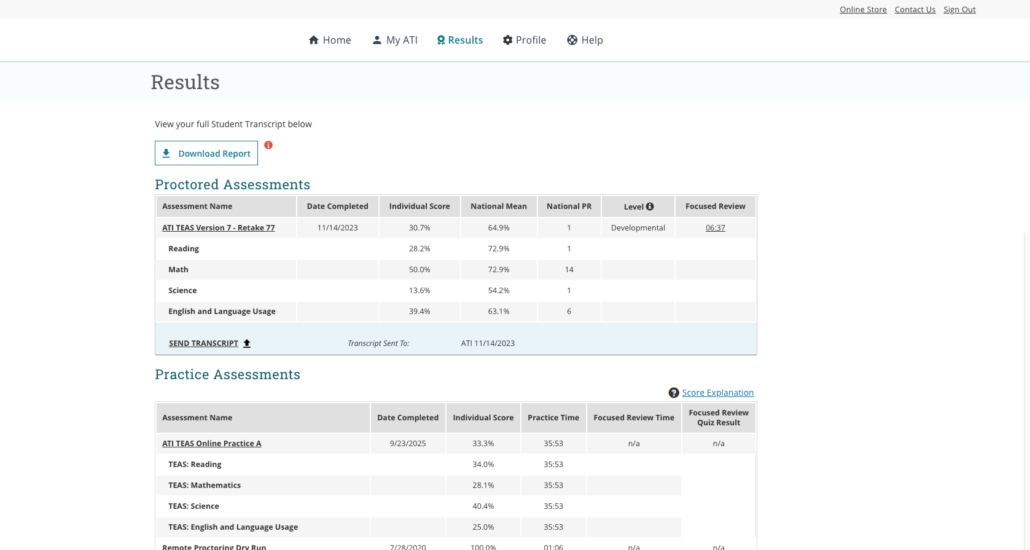
- Under Proctored Assessments, find your ATI TEAS® exam and click SEND TRANSCRIPT. (You can also click Send Transcript on your Individual Performance Profile.)
Results tab – SEND TRANSCRIPT link under your proctored TEAS score
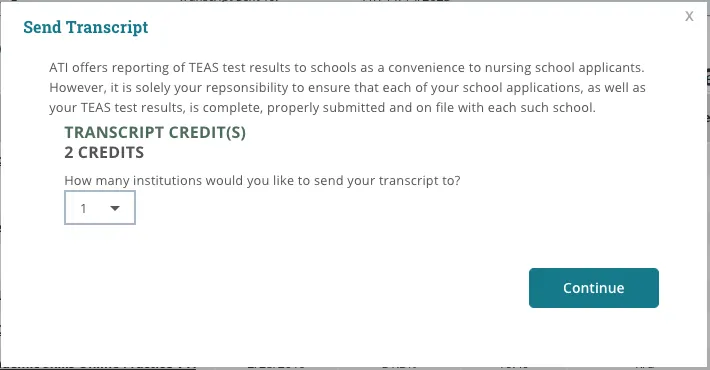
- The Send Transcript window shows your available Transcript Credit(s). Choose how many institutions you want to send to (one credit per institution) and click Continue.
Screen 1 of 4 – Transcript credits and number of institutions
Step 2: Choose your school and send
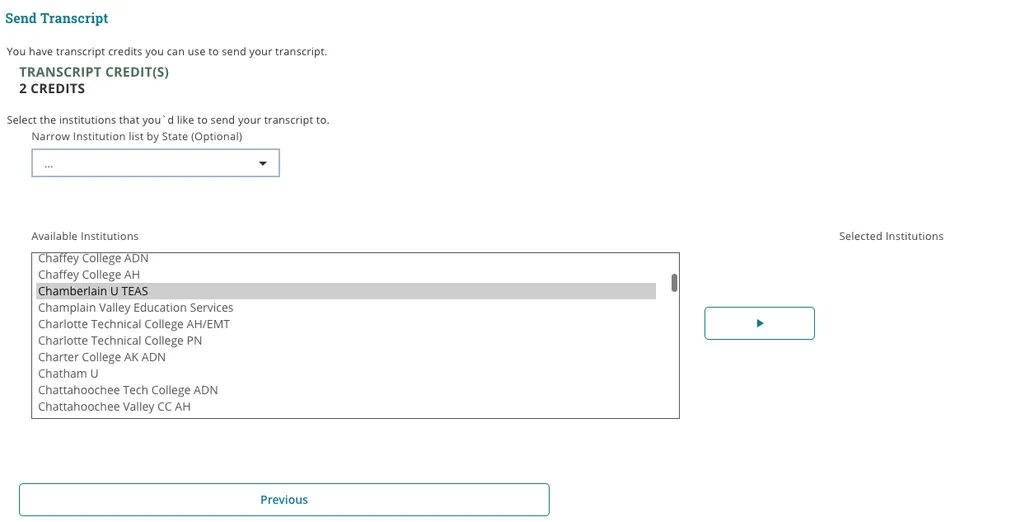
- In the Available Institutions list, click your school, then click the arrow button to move it to Selected Institutions. You can narrow the list by state if it helps. (The screenshots below use one school as an example — pick yours.)
Screen 2 of 4 – Select your institution and click the arrow
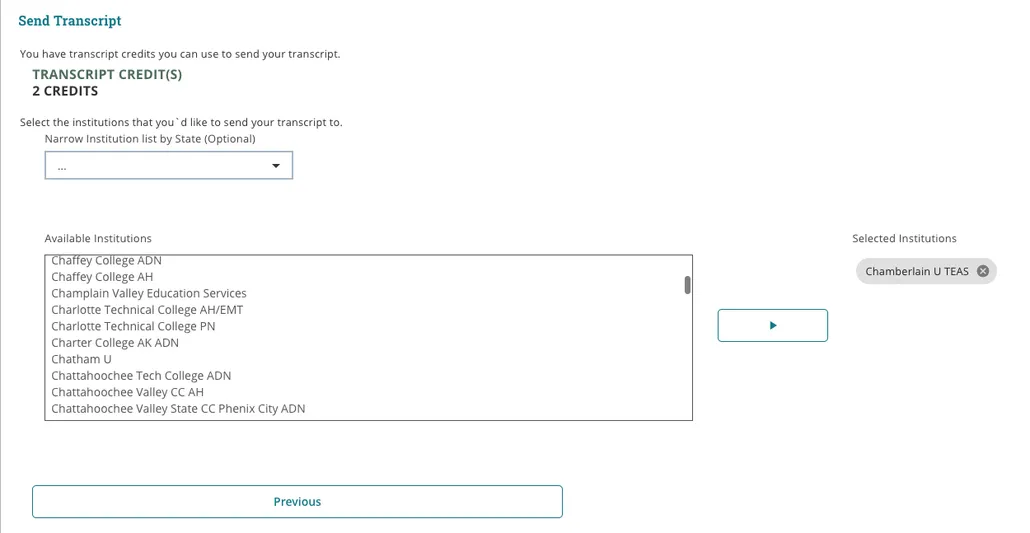
- Confirm your school appears under Selected Institutions and click Continue.
Screen 3 of 4 – Your school under Selected Institutions; click Continue
- Check the institution details. If it’s wrong, click Previous to change it. If it’s right, click Send Transcript.
Screen 4 of 4 – Review and click Send Transcript
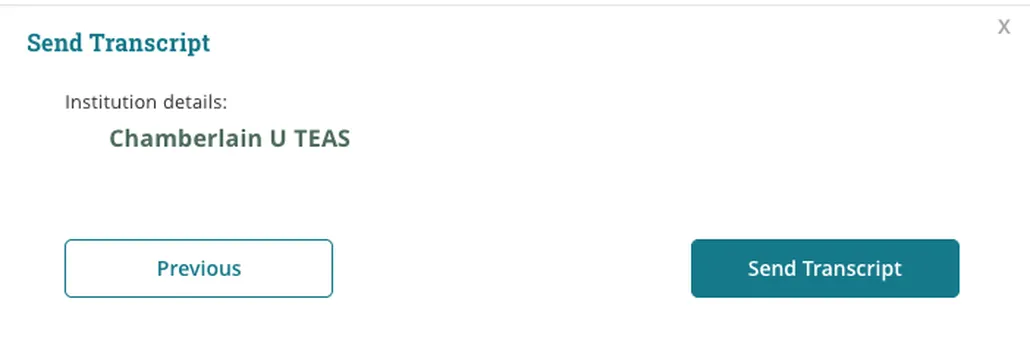
Tip: Take a screenshot of the confirmation screen for your records before you click Send Transcript. Transcripts cannot be recalled once sent, and a credit is used at this point.
Step 3: What to expect after you send
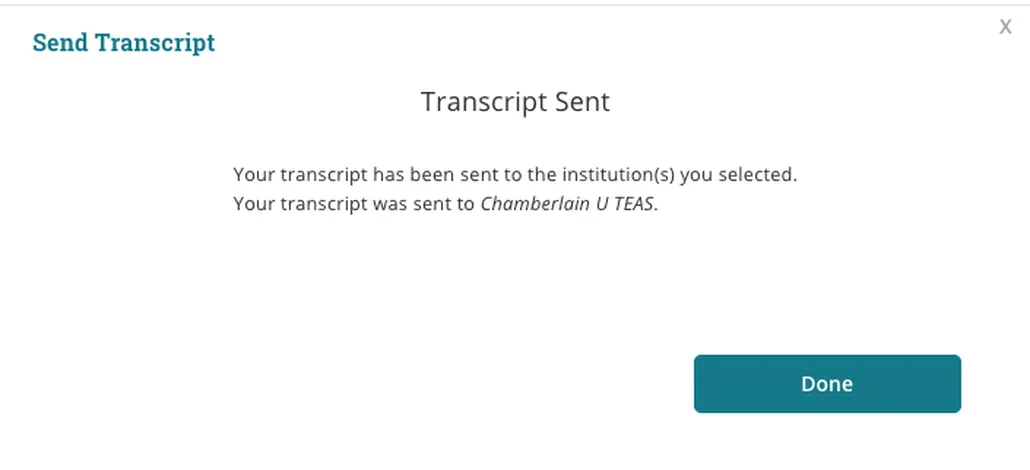
You’ll see a Transcript Sent message. During Preliminary status this means your request is queued: nothing goes to your school yet. When your score is finalized (four business days after your exam date), the transcript is released and delivered electronically within two hours, and ATI emails you a confirmation from Entrance Transcripts ([email protected]) with the subject line TEAS® Results for [your name]. Keep that email — it is your proof of the send date and time.
Transcript Sent confirmation
Frequently asked questions
Should I send now or wait until my score is final?
Send now if you’re confident in your score and your application deadline is close — the transcript is released the moment your score is finalized, so you won’t lose any time. If you’re considering a retake and don’t want this attempt sent, wait. A send cannot be cancelled once submitted.
Will my school see the “Preliminary” watermark?
No. Your school receives your finalized, official transcript. The preliminary watermark appears only on the score report you see in your own account.
Does sending during Preliminary status use my free transcript credit?
Yes. A credit is used when you click Send Transcript, whether your score is preliminary or final. To send to additional schools, purchase additional transcript credits.
It has been more than four business days and my school hasn’t received it.
First check your Results tab: the Transcript Sent To line under your score lists where and when it went. Then confirm with your school’s admissions office, since transcripts are delivered to the department or system the school has set up with ATI. If it still isn’t there, contact ATI Support at 1-800-667-7531.
I can’t find my school in the list.
See Why is my institution not on the transcript send list?
I sent it to the wrong school.
See What do I do if I sent the wrong ATI TEAS transcript?
What does “Preliminary” mean, and when will my score be final?
See What does “Preliminary” indicate on my ATI TEAS Score Report? and How to send a transcript following a TEAS at ATI Exam.
Prefer an interactive walkthrough?
Click Get Started below to step through the same screens one at a time.